
September 20, 2026 — New task launches, Attention, and self-serve workspaces
New task launches, Attention, and self-serve workspaces
September 20, 2026
This release helps you spend less time preparing task prompts and checking where work needs your input. New task launches give you a starting prompt, Attention brings requests and blockers together, and project templates give your AI apps shared instructions to work from. You can also invite others to try Clarabit in their own workspace with a signup link.
New: get from a task to working on it faster
When you’re ready to work on a task, you no longer have to write the opening request from scratch. The new launch actions prepare a prompt for that task that you can open in a supported AI app or copy into an existing conversation. Review it, add anything you want, and send it when you’re ready.
Use it to start an article outline, investigate a question, plan your week, or work on code. Writing, research, and planning projects can use the same flow without a code repository.

Launch controls on a coding task. Choose an app or copy the prompt into your conversation.
New: see where your input can move work forward
When you’re checking in on several pieces of work, start with the new Attention view. It brings review requests, reported blockers, and sessions that appear to have stopped into one place, so you can find what needs a decision without opening each task to check.
Each item explains why it is there and links to the task or session. Clarabit distinguishes a reported request for help from detected inactivity, helping you decide whether to review a result, answer a question, or check on work that may have stopped.
New: give each project a useful starting point
Project instruction templates reduce the blank-page work of explaining how you want an AI app to help. Choose a starting set of shared instructions for the kind of work you’re doing; connected AI apps can read them when they load the project, giving them a common starting point across conversations.
Templates are chosen per project. Your writing project can start with different instructions from your coding project, so you can organize different kinds of work without forcing them to use the same setup.
New: an easier way to introduce others to Clarabit
If you’ve wanted to share how you use Clarabit with a colleague or friend, you can now send them this signup link and let them try it in their own workspace. They can sign in with Google and get started without waiting for us to create an account for them.
Guided setup walks them through creating a project, choosing a template, and connecting their AI app, so you don’t have to walk them through every setup step yourself.
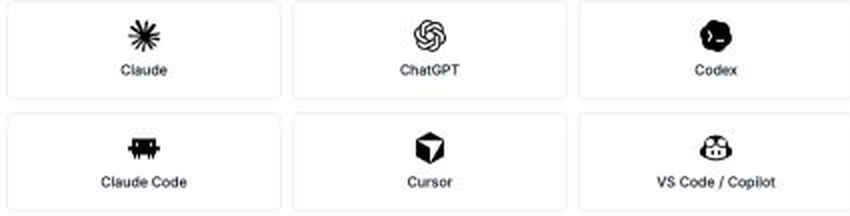
Guided setup lets new users choose the AI app they want to connect first.
To collaborate in your existing workspace, continue using teammate invitations.
Session tracking: new capabilities and reliability fixes
- Hosted session reporting: AI apps using the hosted MCP connector can now report session progress.
- Clearer identity: session details distinguish the person or account behind the work from the AI runtime being used.
- More reliable activity tracking: active sessions and task claims stay current as your AI app works with Clarabit, and stopped sessions are detected more consistently.
Fixes to existing features
- Page history: the latest saved version is now included and retrievable. Change summaries on new edits are attached to the version they describe.
- Task links: links returned to AI apps use the correct Clarabit web address, and task context includes linked merge requests.
- Release timestamps: corrected time handling for release-note publication.
Connector update
Both the cloud connector and local MCP package are now on 2.7.0. See the MCP changelog for the local/cloud comparison and upgrade instructions.